AWS | Connecting to an AWS DB from MySQL Workbench over SSH
How to connect from a local PC to a DB server on AWS via a bastion server over SSH, and operate the DB with MySQL Workbench
When you have a database built on a cloud platform like AWS, there are cases where you want to connect to it from your local PC with MySQL Workbench in order to develop against the DB.
This time, I'll use an SSH connection to connect from a local PC to the DB server via a bastion server, and make it possible to operate the DB with MySQL Workbench.
System Configuration
Let's assume a system configuration like the one below, where you connect to the DB via a web server acting as the bastion server.
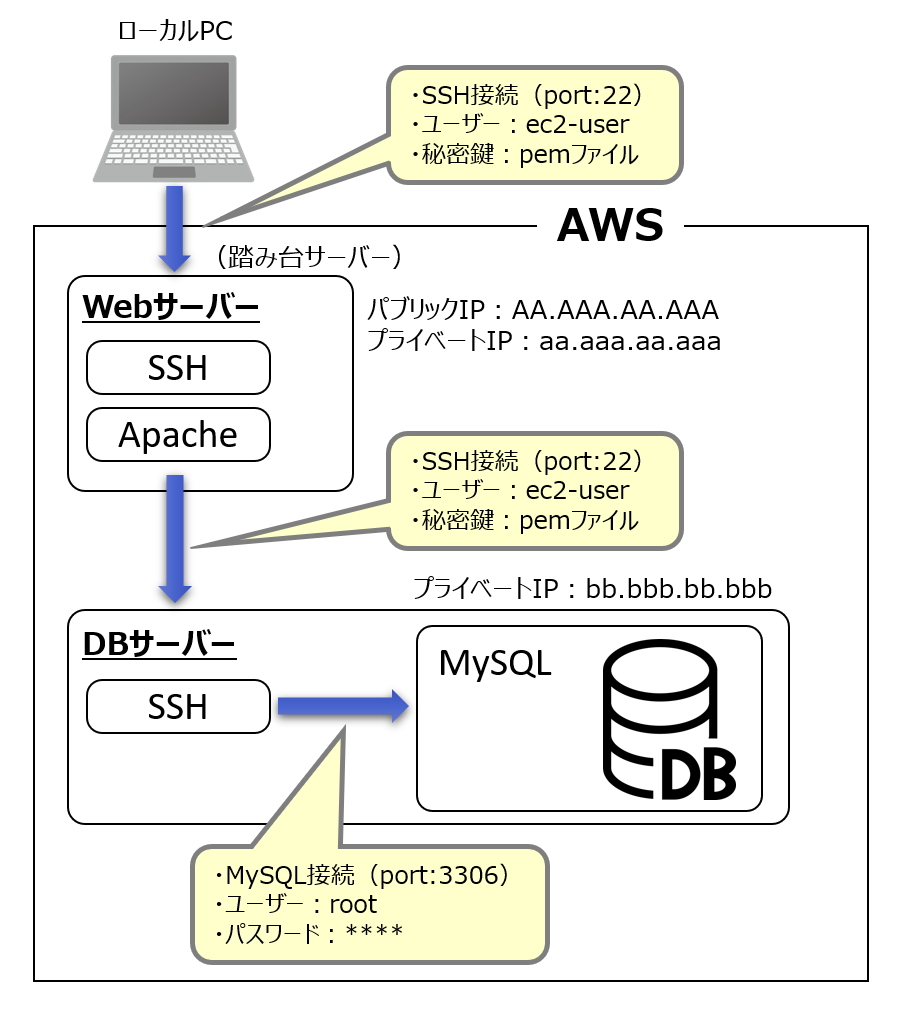
For this configuration, we'll connect from the local PC to "MySQL on the DB server" using MySQL Workbench.
Steps
To connect to the DB from your local PC via the bastion server, build a hole (port forward) with SSH from the terminal (command prompt), then connect with MySQL Workbench.
(1) Save the ①private key and ②config file in the .ssh folder
To connect to the DB server via port forwarding, perform the following steps.
Contents of the .ssh folder
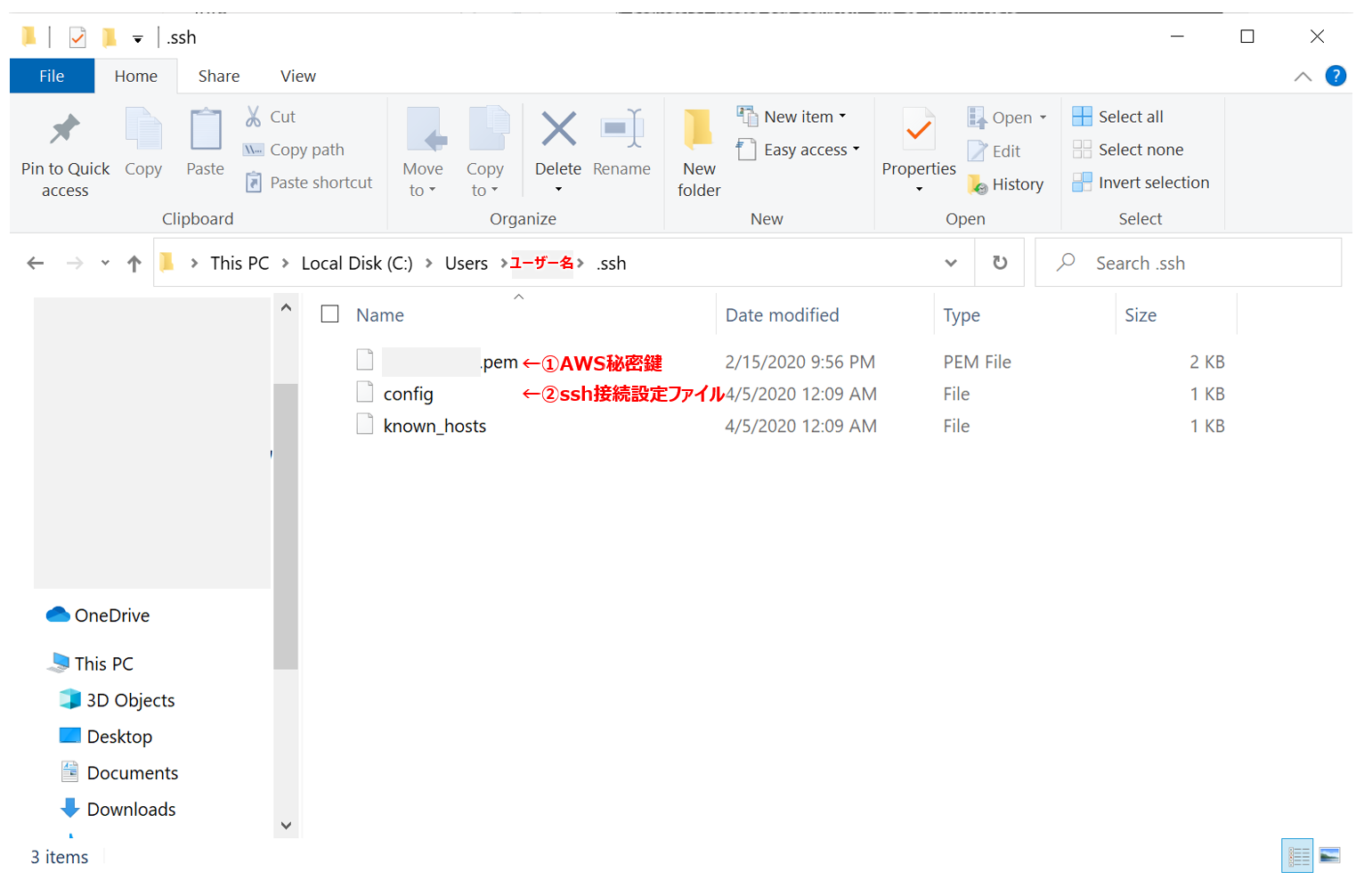
You can prepare the config file by creating a txt file and removing its extension.
(2) Write the contents of the config file
Write the following into the config file.
Host host_wp
  hostname AA.AAA.AA.AAA
  port 22
  user ec2-user
  IdentityFile ~/.ssh/(AWS秘密鍵の名前).pem

Host host_wp_db
  hostname bb.bbb.bb.bbb
  port 22
  user ec2-user
  IdentityFile ~/.ssh/(AWS秘密鍵の名前).pem
  ProxyCommand C:\Windows\System32\OpenSSH\ssh.exe -l %r -o StrictHostKeyChecking=no -o UserKnownHostsFile=/dev/null host_wp  -W %h:%p
  GatewayPorts   yes
  LocalForward   9999   localhost:3306
Connecting to the web server → host_wp
Connecting to the DB server → host_wp_db
For the connection to the DB server, ProxyCommand is specified so that it routes through the host_wp connection.
In this example, port 9999 on the local PC is used for the connection to the DB server (host_wp_db).
Port 9999 can be any number, as long as it is not already used by another application.
【How to check】
Check for an unused port number at the command prompt
netstat -nao|find "9999"
If nothing is returned after running the above, the port is not in use.
(3) SSH connection from the command prompt
Connect to the DB server from the command prompt
ssh host_wp_db
This lets you connect from your local PC to the web server (via the bastion).
Closing the command prompt will drop the SSH connection, so
leave the command prompt open.
(4) Connecting to the DB with MySQL Workbench
Add the following settings under Manage Server Connection in MySQL Workbench.
Connection settings for the AWS MySQL DB
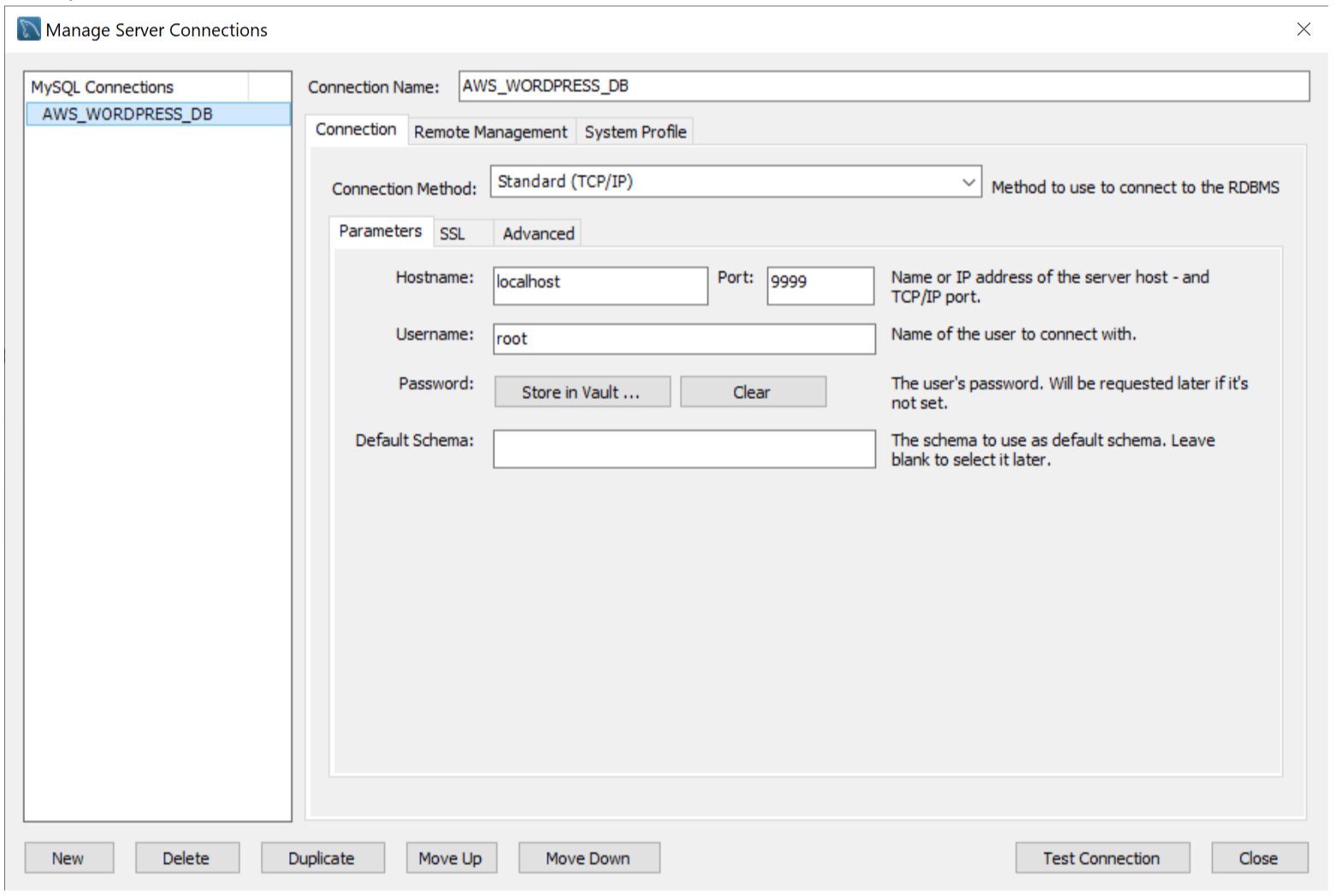
This makes it possible to connect to the MySQL DB on AWS.
That's it!
Related plants
More Tech articles →Spec for Codex: Seamless Spec‑Driven Development in VS Code
A VS Code extension that brings Kiro-compatible spec‑driven workflows to Codex CLI—manage Specs, Steering Docs, and Prompts visually and run tasks inline.
#vscode#codex#sddmulti-agent-ff15: Transforming AI Agents from 'Tools' to 'Comrades'
A multi-agent system where 6 AI agents operate in parallel. Zero-cost coordination accelerates development with a revolutionary new approach
#ai#multi-agent#opencodeBuilding a Self-Improving Advisor System with GitHub Copilot and Knowledge Base
Built a self-improving advisor system using GitHub Copilot's agent functionality that evaluates and improves a knowledge base. Multiple agents collaborate to automatically enhance response quality.
#github-copilot#ai#agent