C# | WPF Prism DataGrid Drag-and-Drop Reordering
In C# WPF, reordering DataGrid records via drag and drop
I'll explain how to reorder DataGrid records via drag and drop in WPF using C#.
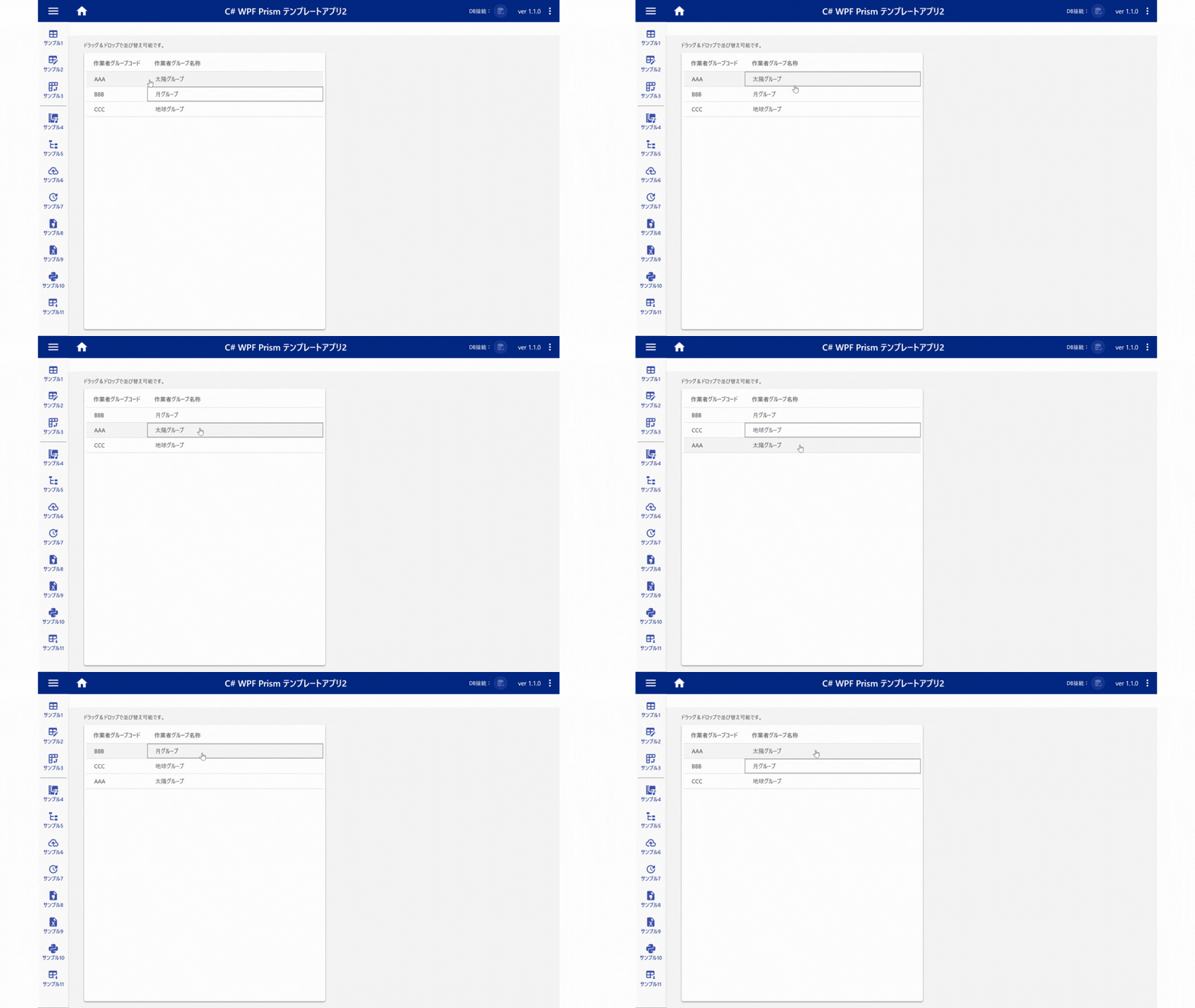
Target Files (Example)
The files you need to code are A and B below.
Services/
 |-BindingDragDropRowBehavior.cs ・・・A

Views/
 |-SampleView.xaml ・・・B
BindingDragDropRowBehavior.cs ・・・A
①Prepare a behavior for dragging and dropping DataGrid rows
Prepare a behavior for dragging and dropping DataGrid rows. The code is below.
Change the namespace as appropriate.
▼BindingDragDropRowBehavior.cs
using System;
using System.Windows;
using System.Windows.Controls;
using System.Windows.Controls.Primitives;
using System.Windows.Input;
using System.Collections;
using System.Windows.Data;
using System.Windows.Media;

namespace Template2.WPF.Services
{
    /// <summary>
    /// DataGridの行をドラッグ&ドロップで並び変えるビヘイビア
    /// 複雑なDataGrid構造には対応していないため注意
    ///
    ///  利用可能なDataGridの例
    ///  ・自動列生成のみ
    ///  ・DataGridTextColumnのみ
    /// </summary>
    public static class BindingDragDropRowBehavior
    {
        private static DataGrid dataGrid;

        private static Popup popup;

        private static bool enable;

        private static object draggedItem;

        public static object DraggedItem
        {
            get { return BindingDragDropRowBehavior.draggedItem; }
            set { BindingDragDropRowBehavior.draggedItem = value; }
        }

        public static Popup GetPopupControl(DependencyObject obj)
        {
            return (Popup)obj.GetValue(PopupControlProperty);
        }

        public static void SetPopupControl(DependencyObject obj, Popup value)
        {
            obj.SetValue(PopupControlProperty, value);
        }

        // Using a DependencyProperty as the backing store for PopupControl.  This enables animation, styling, binding, etc...
        public static readonly DependencyProperty PopupControlProperty =
            DependencyProperty.RegisterAttached("PopupControl", typeof(Popup), typeof(BindingDragDropRowBehavior), new UIPropertyMetadata(null, OnPopupControlChanged));

        private static void OnPopupControlChanged(DependencyObject depObject, DependencyPropertyChangedEventArgs e)
        {
            if (e.NewValue == null || !(e.NewValue is Popup))
            {
                throw new ArgumentException("Popup Control should be set", "PopupControl");
            }
            popup = e.NewValue as Popup;

            dataGrid = depObject as DataGrid;
            // Check if DataGrid
            if (dataGrid == null)
                return;


            if (enable && popup != null)
            {
                dataGrid.BeginningEdit += new EventHandler<DataGridBeginningEditEventArgs>(OnBeginEdit);
                dataGrid.CellEditEnding += new EventHandler<DataGridCellEditEndingEventArgs>(OnEndEdit);
                dataGrid.MouseLeftButtonUp += new System.Windows.Input.MouseButtonEventHandler(OnMouseLeftButtonUp);
                dataGrid.PreviewMouseLeftButtonDown += new MouseButtonEventHandler(OnMouseLeftButtonDown);
                dataGrid.MouseMove += new MouseEventHandler(OnMouseMove);
            }
            else
            {
                dataGrid.BeginningEdit -= new EventHandler<DataGridBeginningEditEventArgs>(OnBeginEdit);
                dataGrid.CellEditEnding -= new EventHandler<DataGridCellEditEndingEventArgs>(OnEndEdit);
                dataGrid.MouseLeftButtonUp -= new System.Windows.Input.MouseButtonEventHandler(OnMouseLeftButtonUp);
                dataGrid.MouseLeftButtonDown -= new MouseButtonEventHandler(OnMouseLeftButtonDown);
                dataGrid.MouseMove -= new MouseEventHandler(OnMouseMove);

                dataGrid = null;
                popup = null;
                draggedItem = null;
                IsEditing = false;
                IsDragging = false;
            }
        }

        public static bool GetEnabled(DependencyObject obj)
        {
            return (bool)obj.GetValue(EnabledProperty);
        }

        public static void SetEnabled(DependencyObject obj, bool value)
        {
            obj.SetValue(EnabledProperty, value);
        }

        // Using a DependencyProperty as the backing store for Enabled.  This enables animation, styling, binding, etc...
        public static readonly DependencyProperty EnabledProperty =
            DependencyProperty.RegisterAttached("Enabled", typeof(bool), typeof(BindingDragDropRowBehavior), new UIPropertyMetadata(false, OnEnabledChanged));

        private static void OnEnabledChanged(DependencyObject depObject, DependencyPropertyChangedEventArgs e)
        {
            //Check if value is a Boolean Type
            if (e.NewValue is bool == false)
                throw new ArgumentException("Value should be of bool type", "Enabled");

            enable = (bool)e.NewValue;

        }

        public static bool IsEditing { get; set; }

        public static bool IsDragging { get; set; }

        private static void OnBeginEdit(object sender, DataGridBeginningEditEventArgs e)
        {
            IsEditing = true;
            //in case we are in the middle of a drag/drop operation, cancel it...
            if (IsDragging) ResetDragDrop();
        }

        private static void OnEndEdit(object sender, DataGridCellEditEndingEventArgs e)
        {
            IsEditing = false;
        }


        /// <summary>
        /// Initiates a drag action if the grid is not in edit mode.
        /// </summary>
        private static void OnMouseLeftButtonDown(object sender, MouseButtonEventArgs e)
        {
            if (IsEditing) return;

            var row = UIHelpers.TryFindFromPoint<DataGridRow>((UIElement)sender, e.GetPosition(dataGrid));
            if (row == null || row.IsEditing) return;

            //set flag that indicates we're capturing mouse movements
            IsDragging = true;
            DraggedItem = row.Item;
        }

        /// <summary>
        /// Completes a drag/drop operation.
        /// </summary>
        private static void OnMouseLeftButtonUp(object sender, MouseButtonEventArgs e)
        {
            if (!IsDragging || IsEditing)
            {
                return;
            }

            //get the target item
            var targetItem = dataGrid.SelectedItem;

            if (targetItem == null || !ReferenceEquals(DraggedItem, targetItem))
            {
                //get target index
                var targetIndex = ((dataGrid).ItemsSource as IList).IndexOf(targetItem);

                //remove the source from the list
                ((dataGrid).ItemsSource as IList).Remove(DraggedItem);

                //move source at the target's location
                ((dataGrid).ItemsSource as IList).Insert(targetIndex, DraggedItem);

                //select the dropped item
                dataGrid.SelectedItem = DraggedItem;
            }

            //reset
            ResetDragDrop();
        }

        /// <summary>
        /// Closes the popup and resets the
        /// grid to read-enabled mode.
        /// </summary>
        private static void ResetDragDrop()
        {
            IsDragging = false;
            popup.IsOpen = false;
            dataGrid.IsReadOnly = false;
        }

        /// <summary>
        /// Updates the popup's position in case of a drag/drop operation.
        /// </summary>
        private static void OnMouseMove(object sender, MouseEventArgs e)
        {
            if (!IsDragging || e.LeftButton != MouseButtonState.Pressed) return;

            popup.DataContext = DraggedItem;
            //display the popup if it hasn't been opened yet
            if (!popup.IsOpen)
            {
                //switch to read-only mode
                dataGrid.IsReadOnly = true;

                //make sure the popup is visible
                popup.IsOpen = true;
            }


            Size popupSize = new Size(popup.ActualWidth, popup.ActualHeight);
            popup.PlacementRectangle = new Rect(e.GetPosition(dataGrid), popupSize);

            //make sure the row under the grid is being selected
            Point position = e.GetPosition(dataGrid);
            var row = UIHelpers.TryFindFromPoint<DataGridRow>(dataGrid, position);
            if (row != null) dataGrid.SelectedItem = row.Item;
        }
    }
    public static class UIHelpers
    {

        #region find parent

        /// <summary>
        /// Finds a parent of a given item on the visual tree.
        /// </summary>
        /// <typeparam name="T">The type of the queried item.</typeparam>
        /// <param name="child">A direct or indirect child of the
        /// queried item.</param>
        /// <returns>The first parent item that matches the submitted
        /// type parameter. If not matching item can be found, a null
        /// reference is being returned.</returns>
        public static T TryFindParent<T>(DependencyObject child)
          where T : DependencyObject
        {
            //get parent item
            DependencyObject parentObject = GetParentObject(child);

            //we've reached the end of the tree
            if (parentObject == null) return null;

            //check if the parent matches the type we're looking for
            T parent = parentObject as T;
            if (parent != null)
            {
                return parent;
            }
            else
            {
                //use recursion to proceed with next level
                return TryFindParent<T>(parentObject);
            }
        }


        /// <summary>
        /// This method is an alternative to WPF's
        /// <see cref="VisualTreeHelper.GetParent"/> method, which also
        /// supports content elements. Do note, that for content element,
        /// this method falls back to the logical tree of the element.
        /// </summary>
        /// <param name="child">The item to be processed.</param>
        /// <returns>The submitted item's parent, if available. Otherwise
        /// null.</returns>
        public static DependencyObject GetParentObject(DependencyObject child)
        {
            if (child == null) return null;
            ContentElement contentElement = child as ContentElement;

            if (contentElement != null)
            {
                DependencyObject parent = ContentOperations.GetParent(contentElement);
                if (parent != null) return parent;

                FrameworkContentElement fce = contentElement as FrameworkContentElement;
                return fce != null ? fce.Parent : null;
            }

            //if it's not a ContentElement, rely on VisualTreeHelper
            return VisualTreeHelper.GetParent(child);
        }

        #endregion


        #region update binding sources

        /// <summary>
        /// Recursively processes a given dependency object and all its
        /// children, and updates sources of all objects that use a
        /// binding expression on a given property.
        /// </summary>
        /// <param name="obj">The dependency object that marks a starting
        /// point. This could be a dialog window or a panel control that
        /// hosts bound controls.</param>
        /// <param name="properties">The properties to be updated if
        /// <paramref name="obj"/> or one of its childs provide it along
        /// with a binding expression.</param>
        public static void UpdateBindingSources(DependencyObject obj,
                                  params DependencyProperty[] properties)
        {
            foreach (DependencyProperty depProperty in properties)
            {
                //check whether the submitted object provides a bound property
                //that matches the property parameters
                BindingExpression be = BindingOperations.GetBindingExpression(obj, depProperty);
                if (be != null) be.UpdateSource();
            }

            int count = VisualTreeHelper.GetChildrenCount(obj);
            for (int i = 0; i < count; i++)
            {
                //process child items recursively
                DependencyObject childObject = VisualTreeHelper.GetChild(obj, i);
                UpdateBindingSources(childObject, properties);
            }
        }

        #endregion


        /// <summary>
        /// Tries to locate a given item within the visual tree,
        /// starting with the dependency object at a given position.
        /// </summary>
        /// <typeparam name="T">The type of the element to be found
        /// on the visual tree of the element at the given location.</typeparam>
        /// <param name="reference">The main element which is used to perform
        /// hit testing.</param>
        /// <param name="point">The position to be evaluated on the origin.</param>
        public static T TryFindFromPoint<T>(UIElement reference, Point point)
          where T : DependencyObject
        {
            DependencyObject element = reference.InputHitTest(point)
                                         as DependencyObject;
            if (element == null) return null;
            else if (element is T) return (T)element;
            else return TryFindParent<T>(element);
        }
    }
}
SampleView.xaml ・・・B
②Add a reference to BindingDragDropRowBehavior in the View
Set BindingDragDropBehavior on the DataGrid you want to reorder via drag and drop.
To do that, first add a setting to the View (xaml) that makes BindingDragDropRowBehavior (that is, its namespace) referenceable.
xmlns:services="clr-namespace:Template2.WPF.Services"
▼SampleView.xaml (when SampleView is a UserControl)
<UserControl x:Class="Template2.WPF.Views.SampleView"
             xmlns="http://schemas.microsoft.com/winfx/2006/xaml/presentation"
             xmlns:x="http://schemas.microsoft.com/winfx/2006/xaml"
             xmlns:prism="http://prismlibrary.com/"
             prism:ViewModelLocator.AutoWireViewModel="True"
             xmlns:services="clr-namespace:Template2.WPF.Services">
    ・・・
With this, SampleView can now use the class stored in services (BindingDragDropBehavior).
③Add the BindingDragDropRowBehavior settings to the DataGrid
Next, add the following code to the DataGrid.
services:BindingDragDropRowBehavior can be referenced as long as ② above has already been set up.
Add the following properties to the DataGrid.
x:Name="WorkerGroupMstEntitiesName"
SelectionMode="Single"
services:BindingDragDropRowBehavior.Enabled="True"
services:BindingDragDropRowBehavior.PopupControl="{Binding ElementName=DraggingPopup}"
AllowDrop="True"
Here's an actual implementation example.
▼SampleView.xaml (implementation example on the DataGrid)
<DataGrid Style="{StaticResource commonDataGrid}"
            ItemsSource="{Binding WorkerGroupMstEntities}"
            Cursor="Hand"
            Margin="5"

            x:Name="WorkerGroupMstEntitiesName"
            SelectionMode="Single"
            services:BindingDragDropRowBehavior.Enabled="True"
            services:BindingDragDropRowBehavior.PopupControl="{Binding ElementName=DraggingPopup}"
            AllowDrop="True">
The services:BindingDragDropRowBehavior.PopupControl="{Binding ElementName=DraggingPopup} in the code above is needed for the popup display described next.
④Add the popup display settings for when the DataGrid is dragged and dropped
The popup is a feature that shows a record's data while it's being dragged.
It makes it easy to see which record is selected — that is, which one is being dragged.
For the implementation, place a Popup outside the DataGrid, as shown below.
▼SampleView.xaml
<!-- DataGridをドラッグ&ドロップした際のポップアップ表示 -->
<Popup  x:Name="DraggingPopup"
        AllowsTransparency="True"
        IsHitTestVisible="False"
        Placement="RelativePoint"
        PlacementTarget="{Binding ElementName=WorkerGroupMstEntitiesName}">
    <!--  Popup construction Use properties of DraggedObject inside for Binding  -->
    <TextBlock Text="{Binding Path=WorkerGroupName}"/>
</Popup>

<DataGrid Style="{StaticResource commonDataGrid}"
            ItemsSource="{Binding WorkerGroupMstEntities}"
            Cursor="Hand"
            Margin="5"

            x:Name="WorkerGroupMstEntitiesName"
            SelectionMode="Single"
            services:BindingDragDropRowBehavior.Enabled="True"
            services:BindingDragDropRowBehavior.PopupControl="{Binding ElementName=DraggingPopup}"
            AllowDrop="True">

    <DataGrid.Columns>
        <DataGridTextColumn Header="作業者グループコード"
                            Binding="{Binding WorkerGroupCode}"
                            IsReadOnly="True">
        </DataGridTextColumn>
        <DataGridTextColumn Header="作業者グループ名称"
                            Binding="{Binding WorkerGroupName}"
                            MinWidth="400"
                            IsReadOnly="True">
        </DataGridTextColumn>
    </DataGrid.Columns>

</DataGrid>
The Popup's Name is the name set on the DataGrid's PopupControl.
▼Inside <Popup>
x:Name="**DraggingPopup**"
corresponds to
▼Inside <DataGdid>
services:BindingDragDropRowBehavior.PopupControl="{Binding ElementName=**DraggingPopup**}"
Also, the text shown in the Popup while dragging is set in the part below.
▼Inside <Popup>
<TextBlock Text="{Binding Path=WorkerGroupName}"/>
The property set in the Binding Path of the Popup's TextBlock above (in this case, WorkerGroupName) is what gets displayed while dragging.
That's it.
Related plants
More Tech articles →Building Desktop Ink - A Windows Screen Drawing App
Implementation story of a lightweight screen overlay app built with .NET 10 for marking during screen sharing in online meetings
#csharp#wpf#dotnetHow to Asynchronously Update an ObservableCollection in C# WPF
Implement an ObservableCollection that supports asynchronous updates in WPF, with examples of AsyncObservableCollection and PageMstCollection.
#csharp#wpfC# | How to call a MainWindow method from a partial View in WPF Prism
In WPF Prism, you can call a method on the Main Window from a partial view. Using Prism's Event Aggregator avoids direct references between view models and makes it easy to handle events raised within the application.
#csharp#wpf#prism